
Bristol_Jonesey
-
Posts
1,336 -
Joined
-
Last visited
-
Days Won
2
Everything posted by Bristol_Jonesey
-

How can I save track sizes and position?
Bristol_Jonesey replied to gmp's topic in Cakewalk by BandLab
Screensets will do this, as will Workspaces I find Screensets a little more intuitive, but your mileage may vary -
No audio and every track grey....
Bristol_Jonesey replied to Bostmaster's topic in Cakewalk by BandLab
Have you tried ctrl + z ? -
Rature Pro & Z3TA installations
Bristol_Jonesey replied to Paul Montgomery's topic in Cakewalk by BandLab
Should all be available in the Cakewalk Command Centre (CCC) -
Moving plugin positions in the Synth Rack
Bristol_Jonesey replied to Sven's topic in Cakewalk by BandLab
You can't move them -
Clipping at track level really makes no difference as you are not clipping your converters ** You can prove it by boosting the input signal to a ridiculous level, and as long as it's brought under control BEFORE it hits your mains, it will not sound distorted Clipping at the main outs is bad and this is what you need to avoid ** nothwithstanding the fact that clipping is bad for gain staging and the effect on plugins further down the chain
-
Help, Time stretching causing audio dropouts.
Bristol_Jonesey replied to NokNod's topic in Cakewalk by BandLab
You need to render the clip before evaluating it -
Clicks/Pops in audio export - question
Bristol_Jonesey replied to Colin Nicholls's topic in Cakewalk by BandLab
What's your buffer size? -
I use screensets all the time but cannot replicate the problem you describe above Sorry to be of no help ☹️
-
How do I find my Spitfire Audio plugin?
Bristol_Jonesey replied to RICHARD HUTCHINS's topic in Cakewalk by BandLab
Before you do a rescan, hit RESET first -
Just an idea - open it in X3 and do a "save as" with a new name Try and open that in CbB You might also benefit from selecting all clips and do a bounce to clip before saving
-
Hi All A couple of days ago my laptop decided to disable the onboard sound device (Realtek) This *seems* to coincide with a Windows Update, but I'm not 100% sure of this I only use this laptop with CbB as a testbed for plugins etc so a decent interface is neither desirable or necessary But, try as I might, I cannot get the Realtek to install again The speaker icon in the system try has an X next to it, and going into sounds playback it lists 4 items, all the same, Digital Audio (HDMI). High Definition Audio Device not plugged in Disabling this in Device Manager makes no difference - they come back after a reboot Thing is, this laptop doesn't even have a HMDI port Last night I reloaded Windows and briefy, the Realtek came back and was working, but again, after rebooting, they disappear So I'm going round in circles with this one - any ideas anyone? Thanks
-
Yes that is odd. Bouncing to clips works without even having to invoke Ripple Edit
-
Editing in the Tempo Track is very similar to editing automation envelopes
-
If Ripple Editing is not working then I would respectfully suggest you're doing something wrong Identify where the project ends, as described earlier Select all In the timeline, drag across where YOU want it to end and the actual end Turn on Ripple Edit Hit delete Turn off Ripple Edit
-
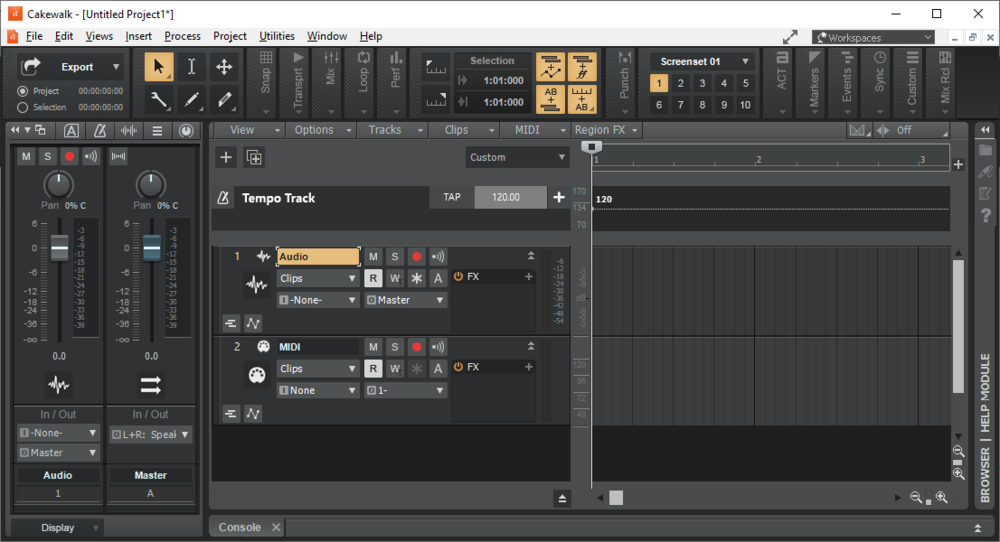
Tempo track is here, above the tracks
-
Repeating a bar/measure/clip x times before moving on
Bristol_Jonesey replied to Jeremy Oakes's topic in Cakewalk by BandLab
Turn the clip into a groove clip and just drag it out for as many bars as you want 2 clicks -
Pro Channel - panel remember scroll position?
Bristol_Jonesey replied to sadicus's topic in Cakewalk by BandLab
Open both tracks up in Console View -
Rendering Softsynths To Audio Questions
Bristol_Jonesey replied to Adam Grossman's topic in Cakewalk by BandLab
Why? -
Switch all tracks to Clip view?
Bristol_Jonesey replied to Terry Kelley's topic in Cakewalk by BandLab
It might not work in the clip you're changing the Edit Filter on is already set to whatever it is you want to change them to. -
Switch all tracks to Clip view?
Bristol_Jonesey replied to Terry Kelley's topic in Cakewalk by BandLab
Select all tracks, use the control key and choose what you want from the Event Filter -
No. They all work independently. The best you can do is to get one set up exactly like you want it, then use "Duplicate Screenset To" and make the changes to your meters on the duplicates
-
You don't need a keyboard shortcut if you use Screensets in the way I described Nothing can be quicker than typing '1' or '2' (NOT the numeric keypad - the numbers on the top row!!)
-
Console View -> Strips -> Instrument
Bristol_Jonesey replied to Ferenc Hegedus's topic in Cakewalk by BandLab
Doesn't sound like a bug. I think this is just a limitation of using Instrument tracks rather than split I always use split and puta ll my Midi tracks into their own folder so that they can be easily hidden in Track View -
CWbB - CD Burner Utility - No Song Titles
Bristol_Jonesey replied to musikman1's topic in Cakewalk by BandLab
Never used it. I use CD Architect -
I usually put an EQ with a HPF before the verb to tame the mud, and sometimes a LPF after the verb to kill excessive highs