

-
Posts
4,916 -
Joined
-
Last visited
-
Days Won
5
Everything posted by David Baay
-
Yes, you can also hard-pan instruments and use each side of the 4 stereo ouputs as a mono output. But it's easier to use multiple instances as you suggest.
-
TTS-1 has 16 MIDI/Instrument channels internally but only 4 stereo audio outputs. I don't know why they didn't provide one output per MIDI channel other than that it was (and still is) common for hardware instruments to have a limited number of audio ouputs. The assumption was that you would do most of your mixing in MIDI.
-
There is an option to "Allow MIDI Recording without an Armed Track" in Preferences > MIDI > Playback and Recording. The currently focused track is effectively 'auto-armed'.
-
TTS-1 has only 4 indpendent audio outputs.
-
Notwithstanding that such a project would seem likely to be unmanageable in other respects, I went ahead and tested with 1200 empty tracks (400 MIDI and 800 Audio) and saw very slight delay (less than 1 second) between arming a track with Alt+R and having the transport start rolling when R is hit immediately after arming. This delay seemed to correspond to a delay in the Arm button in the Track Inspector changing state to match the track. Such a small delay seems quite tolerable to me. If you're seeing a much longer delay than that, it may be related to your interface driver or something else system-specific.
-
You're going to have to come up with a repeatable sequence of steps that demonstrates the issue in order for the Bakers to have any chance of fixing it.
-
Ctrl+R arms *all* tracks, Alt+R arms only the focused or selected tracks. Does that not cover it?
-
Yeah. but $3.49...? I'm getting it just so I can have the groovy institutional green UI up on my second monitor.
-
Welcome to the forum, and thanks for sharing the tip, Hap. For the record, Print and Print Preview are working okay as-is for me in CbB on Win11.
-
 This is referring to the Input (labeled 'I') in a MIDI in Instrument track. Usually you want to set this to the specific port and channel that your keyboard/controller is on. Then it doesn't matter if MIDI messages are coming from other sources; they'll be ignored. If you don't explcitly set it, it will default to All Inputs - Omni (all channels), and the track will echo everything to the synth.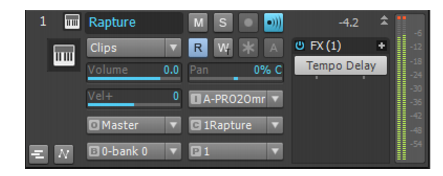
-
cakewalk Can't see the waveforms either the midi notes of a clip
David Baay replied to David Sáenz's question in Q&A
View > Display > Display Clip Contents is enabled by default; you must have inadvertently disabled it at some point. -
bug report Bugs I wish were fixed for Christmas
David Baay replied to Elena Kolpakova's topic in Cakewalk by BandLab
I can't repro #1; might be related to something in your default template. I don't normally have CbB set to open the default template on launch but it didn't cause a problem. And I often open an existing project over an unsaved project started manually from my default a template and have never had a crash in that case either. I agree with Byron that #2 and #4 are likely Workspace-related. I don't use Workspaces, and don't have those issues. Regarding #3, I have keybindings for Goto From and Goto Thru (don't recall the defaults if there are any). Hitting either one of these in the situation you describe will take the PRV to the Now time -
I'm not sure what might have gone wrong to get that result, but I can't replicate it right offhand. That said, Step Sequencer clips are already set up to allow 'rolling out' repetitions just be grabbing the right edge of the clip and dragging it. You can see that a clip is "looped" to allow this (either as a Step Sequencer clip or a Groove Clip) by the beveled corners. EDIT: On re-reading your post, I see I missed that the duplication happens when you make a change to the SS pattern. I can replicate that. Seems there is a logic error related to having linked step sequencer clips that are already inherently linked. If you paste without linking, they should still all take on changes made to any one of them because they are referencing the same Step Sequence. But ideally, you should just take advantage of the looping feature and only make copies if you need to have a gap in the repetition.
-
Just to clarify, the summary was taken from previous posts I've made where the primary goal was to clean all audio folders in one go, but you don't have to do that. Before you get to that point, CWAF shows you everything you need to know about where every project's audio is stored and which projects are referencing which wave files. I still think it would help you sort out what happened.
-
Run the Cakewalk Audio Finder (CWAF) Tool from the Utilities menu. when it's done, you can click on projects to find related wav files or vice versa. CWAF is the tool everyone loves to hate. It's ancient and awkward in some ways, and slow because it's thorough. It helps to do some setup first to make the searching more efficient; here's a summary: Preparation: - Create a folder called “CWAF-Excluded WAVs” at the same level as your Projects folder. - Create a shortcut to \Program Files\Cakewalk\Shared Utilities\cwaftool.exe so you can run it with CbB shut down. Usage: - Close CbB. - Empty the Recycle Bin. - Start CWAF Tool. - Add your “Excluded” folder and any other paths on the drive that will never have projects or audio in them to the Folders to Ignore list (it helps if your Projects folder is at the root of a drive with few other root-level folders). - Select a drive to search (usually just the drive with Projects on it). - Click 'Find'; the button label will change to 'Stop', and you will see paths being searched in the status bar at the bottom. - Wait for the Stop button to change back to Find, indicating the search is complete. - Click the 'Status' column header to get all the 'Orphaned' files floated to the top. - Select all the orphans, click the Move button, and select the CWAF Excluded WAVs folder on the local drive as the target. - Repeat the search and sort, and scroll through the list to be sure there are no Orphaned or Missing files reported (i.e. you found all the orphans, and didn’t inadvertently move something that wasn’t an orphan). - You can now safely Shift+Delete (permanently deletes, bypassing the Recycle Bin) all the files in the “Excluded” folder.
-
How can I UNDO "Fit content (CTRL+F)"?
David Baay replied to pulsewalk's topic in Cakewalk by BandLab
Video is worth a thousand word, eh? ? -
How can I UNDO "Fit content (CTRL+F)"?
David Baay replied to pulsewalk's topic in Cakewalk by BandLab
It does what I said. Zooming the track scale zooms the clip content. I'm not aware of any way that waveforms can be visually zoomed to the point of appearing clipped other than by changing the vertical track scale. There is also a "Maximize Waveform Height" option under View > Display Track Options > Display, but that just eliminates the clip title bars, slightly increasing the visual amplitude of the waveform; it won't make a waveform look clipped if it wasn't already zoomed as well. I don't mean to be short with you, and possibly you actually have something unusual going on, but have you tried any of what I suggested to return the track scaling to default? If the scale is zoomed, the ends of the scale will be showing some higher value than -3dB which is what you should see when fully zoomed out (the default). It's also possible to zoom out further so that the scale shows up to +9dB though the waveform will never exceed 0dB. https://www.cakewalk.com/Documentation?product=Cakewalk&language=3&help=EditingAudio.13.html -
How can I UNDO "Fit content (CTRL+F)"?
David Baay replied to pulsewalk's topic in Cakewalk by BandLab
Yes, we're talking about the same thing. Ctrl+F zooms the vertical scale of the track to fit the content (whether a waveform or MIDI notes) with no wasted space above or below the highest amplitude/note numberi n the track. Double-clicking the scale between the Tracks pane and the Clips pane will take the vertical zoom level back to default full-scale. I could be wrong but I don't believe there's a bindable 'reset' function to do this. -
How can I UNDO "Fit content (CTRL+F)"?
David Baay replied to pulsewalk's topic in Cakewalk by BandLab
Double-click the scale at the edge of the Clips pane to reset to full scale (no zoom). You can also click and drag to some intermediate zoom level. -
Cakewalk Application has stopped working
David Baay replied to IRAKLI KVANCHIANI's topic in Cakewalk by BandLab
Just happened to see this before shutting down for the night. Indeed they both crash CbB even when opened in Safe mode, skipping all plugins. The bakers will need to check these out. -
Cakewalk Application has stopped working
David Baay replied to IRAKLI KVANCHIANI's topic in Cakewalk by BandLab
If possible share a zipped copy of the project folder for others to check whether it's the project itself or a problem with your environment. Or just PM a link to one of us if you don't want to share with the whole world. -
Cakewalk Application has stopped working
David Baay replied to IRAKLI KVANCHIANI's topic in Cakewalk by BandLab
Second time with the same projet or was it a different project the first time? What solved it the first time? Are other projects opening okay? -
Most unusual A dropout has stopped the audio engine situation
David Baay replied to Misha's topic in Cakewalk by BandLab
My first guess would some problem reading that particular file. The performance meter is showing not a lot of free space remaining on that disk. I don't know much about failure modes or behavior of SSDs when they get old, extremely fragmented and/or full, but would probably suggest some of the same things you would do with a conventional drive: free up space, scan for errors, defrag and re-save the project to a new location with Copy All Audio enabled to consolidate it. -
Yes, this has always been problematic AFAIK. Workaround: Click to add the node then immediately grab it and drag to snap, holding Shift to constrain movement if you don't want to change the level.
-
Cakewalk copies audio files when the project is saved
David Baay replied to Daryl L. Samuel's topic in Feedback Loop
That setting no longer exists since per-project audio became the default someimte in SONAR Platinum era. Now there's "Always Copy Imported Audio Files" in Preferences > File > Audio Data. The first step is to uncheck that. A copy might still be made if your 'Import Bit Depth' setting forces a change in audio format or the sample rate is not matching the project, but the new file will be created in the Global Audio Folder initially, and will stay there if you re-save after having unchecked "Copy All Audio" option in the save dialog initially. But if the format doesn't have to change, the project will reference the file in the original location.